> ## Documentation Index
> Fetch the complete documentation index at: https://react.email/docs/llms.txt
> Use this file to discover all available pages before exploring further.
# Automatic Setup
> Add React Email to any JavaScript or TypeScript project in minutes.
Using monorepos? Then, we recommend following the [monorepo setup](/getting-started/monorepo-setup/choose-package-manager).
## 1. Install
We recommend using `create-email`, which sets up everything automatically for you.
```sh npm theme={"theme":{"light":"github-light","dark":"vesper"}}
npx create-email@latest
```
```sh yarn theme={"theme":{"light":"github-light","dark":"vesper"}}
yarn create email
```
```sh pnpm theme={"theme":{"light":"github-light","dark":"vesper"}}
pnpm create email
```
```sh bun theme={"theme":{"light":"github-light","dark":"vesper"}}
bun create email
```
This will create a new folder called `react-email-starter` with a few email templates.
## 2. Run locally
First, install the dependencies:
```sh npm theme={"theme":{"light":"github-light","dark":"vesper"}}
npm install
```
```sh yarn theme={"theme":{"light":"github-light","dark":"vesper"}}
yarn
```
```sh pnpm theme={"theme":{"light":"github-light","dark":"vesper"}}
pnpm install
```
```sh bun theme={"theme":{"light":"github-light","dark":"vesper"}}
bun install
```
Then, run the development server:
```sh npm theme={"theme":{"light":"github-light","dark":"vesper"}}
npm run dev
```
```sh yarn theme={"theme":{"light":"github-light","dark":"vesper"}}
yarn dev
```
```sh pnpm theme={"theme":{"light":"github-light","dark":"vesper"}}
pnpm dev
```
```sh bun theme={"theme":{"light":"github-light","dark":"vesper"}}
bun dev
```
## 3. See changes live
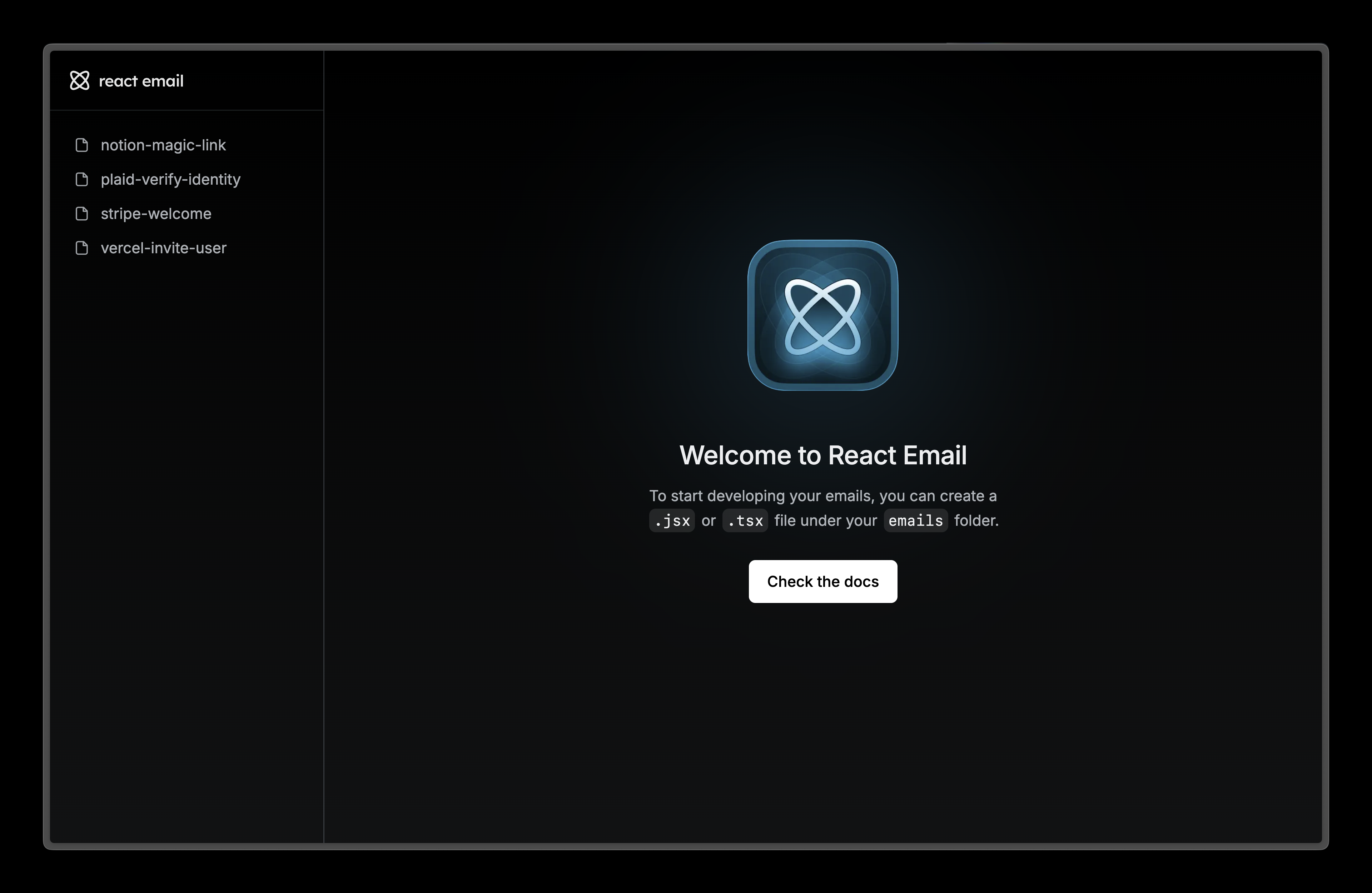
Visit [localhost:3000](http://localhost:3000) and edit any of the files on the `emails` folder to see the changes.
 ## 4. Next steps
Try adding these other components to your email.
Display an image in your email.
A hyperlink to web pages or anything else a URL can address.
Display a divider that separates content areas in your email.
A preview text that will be displayed in the inbox of the recipient.
## 4. Next steps
Try adding these other components to your email.
Display an image in your email.
A hyperlink to web pages or anything else a URL can address.
Display a divider that separates content areas in your email.
A preview text that will be displayed in the inbox of the recipient.